Tip calculator — split the bill
When you split the bill, the tip calculator shows your tip, total and exact amount per person.
Enter your bill, choose a tip and set the number of people. Then calculate.
Your bill
Currency label only; no exchange conversion.
Use a dot or comma for decimals; no thousands separators.
Enter the bill before the extra tip.
Itemize amounts already included
These amounts are already in your bill. Leave empty for zero.
Your result
The recovered bill is rounded half up to a minor unit; tip is the remainder. The realized percentage may differ slightly, but the total is preserved.
See how to split the last few cents
General information, not financial, tax or legal advice. Check any service charge before adding a tip.
Amount per person
Any leftover cents go to the first shares. Choose who pays each amount.
Compare percentage choices
Compare rates on your chosen base, before rounding up.
| Rate | Tip | Final total | Share range |
|---|
Results update as you type. Ctrl/Command + Enter copies the receipt.
Start with the receipt
Before I use the tip calculator, I check whether the tip needs adding or is already inside the receipt total. Tax and service charges stay inside the amount you enter; itemizing them helps you choose the tip base without adding them twice.
The starting values show a worked example. Choose your own percentage after checking the receipt and any service charge already listed.
Tip calculator: percentage or exact amount
Want to leave a specific amount? Choose Set tip amount, enter 9.25 and a bill of 62.87, and the total is 72.12. Four people pay 18.03 each. The percentage table remains available to compare other choices, but it does not determine your chosen tip.
Results update as you type. Press Calculate or Enter in a field to review the result; on a phone this takes you straight to the payment total.
Choose the amount before choosing the percentage
- Select your currency and whether you are adding a tip or recovering one already included.
- Enter the relevant receipt total and your chosen percentage.
- If helpful, itemize the tax and service charge already inside that amount.
- Choose the full-bill base or the bill minus those included portions.
- Set the number of people and read the numbered payment shares.
For Add a tip, the amount is the current receipt before the extra tip, including any entered tax and charge. For Tip already included, the amount is a fixed final total containing the tip you want to recover. The tax and charge fields still describe included portions. An empty itemized field means zero; an empty bill, percentage or people field produces an error and shows you which field to correct.
Keep the tip base explicit
| Field | Its job | Common mistake |
|---|---|---|
| Receipt amount | Existing bill or fixed final total, according to mode | Entering a subtotal while treating included amounts as additions |
| Included tax | A portion already inside the amount | Adding it to the receipt again |
| Included service / gratuity | Another already billed portion | Assuming the extra tip replaces that charge |
| Percentage base | Full bill, or bill minus both itemized portions | Comparing equal percentages on different bases |
| People | An equal allocation of the final total | Expecting the tool to know who ordered which item |
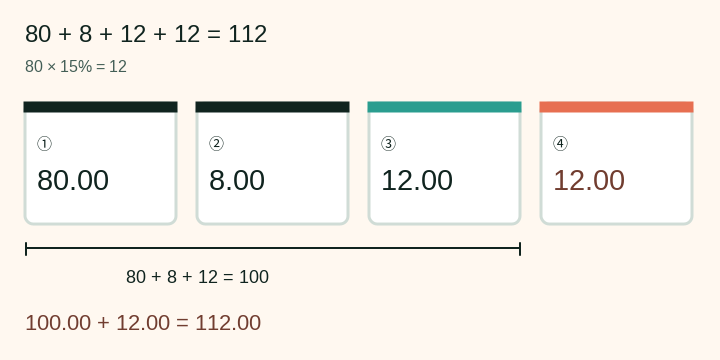
Suppose the bill is 100.00, including tax of 8.00 and a service charge of 12.00. On the reduced base, 100.00 − 8.00 − 12.00 = 80.00. An additional 15% gives 12.00, so the final total is 112.00. The existing charge stays in the bill.
With the full-bill base, the same 15% instead gives 15.00 and a total of 115.00. That difference comes from the selected base, not a rounding problem. I keep the basis visible on the receipt because a percentage by itself is incomplete information. Read the included-charge guide before comparing a service line with an additional tip.
Tip calculator: exact amounts per person
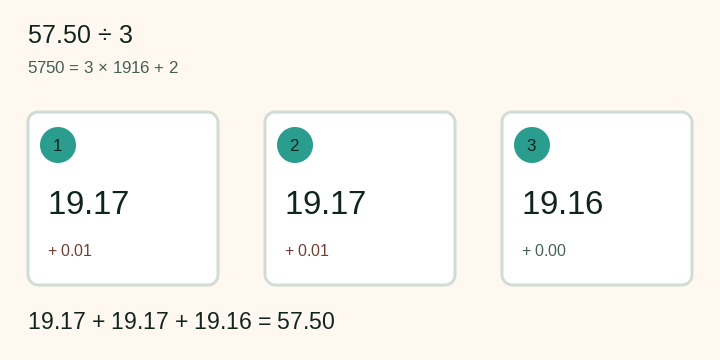
The result gives an exact equal split in whole minor units. For 50.00 at 15%, the tip is 7.50 and the final total is 57.50. With three people, dividing 5,750 cents by 3 gives 1,916 cents each and 2 cents left. Two numbered shares therefore pay 19.17 and the third pays 19.16. Their sum is 57.50, not an independently rounded approximation.
The first numbered shares receive the extra cent. Your group chooses who pays those shares. Different meals or earlier payments need a separate agreement, since the tool splits equally. The exact-share guide explains the remainder and how rounding the total changes it.
Each payment also shows its share of the tip. Leftover tip cents go to the first numbered people; their bill portions are the remaining amounts in those exact payments. The tip portions add to the total tip, and bill plus tip adds to each person’s payment.
Recovering an included tip reverses the percentage
If 115.00 already contains a 15% tip on the full bill, the bill before that tip is 115.00 ÷ 1.15 = 100.00. The recovered tip is 15.00. Multiplying the final total by 15% would give 17.25 and answer the wrong question. The receipt shows the recovered bill and tip while preserving the entered final total.
Where the percentage excludes included tax and charge, the reverse formula is bill = (final total + rate × included portions) ÷ (1 + rate). Here rate is the percentage divided by 100. For a total of 112.00, rate 0.15 and included portions of 20.00, that is (112.00 + 3.00) ÷ 1.15 = 100.00. The reduced base is 80.00 and the recovered tip is 12.00.
Not every inverse result is an exact cent amount. At a fixed total of 100.00 and 15%, the unrounded bill is approximately 86.956522. The tool rounds that bill half up to 86.96 and assigns the remainder, 13.04, to the tip. The realized percentage may differ slightly, but the two amounts still add to 100.00. Round-up controls are disabled in this mode because increasing the payment would conflict with a fixed final total.
In included-tip mode, tax and service charge together must also fit inside the recovered bill before tip. Otherwise the assumed rate and receipt parts are inconsistent. Comparison rows flag any rate that would make those parts larger than the recovered bill.
Round a payment amount without rewriting the percentage
When adding a percentage tip or a fixed tip amount, Round tip up or Round total up moves the selected amount to the next whole currency unit, leaving an already whole amount unchanged. For 99.99 at 18%, the unrounded tip is 17.9982, rounded half up to 18.00. The total is 117.99. Rounding that total upward gives 118.00 and an exact additional tip of 18.01. The tool stores that amount directly instead of approximating a new percentage.
The receipt labels a round-up and keeps your original rate for comparison. Editing an input or choosing a percentage returns to the ordinary calculation. Comparison rows always show amounts before the round-up. The percentage chart guide compares rates and bases.
The printed amounts have to reconcile
| Entered case | Expected result |
|---|---|
| 50.00 + 15%, split three | 7.50 tip; 19.17, 19.17, 19.16 shares |
| 0.03 + 20%, split three | 0.01 tip; 0.02, 0.01, 0.01 shares |
| 115.00 already including 15% | 100.00 bill; 15.00 recovered tip |
| 100.00 including 8.00 tax and 12.00 charge, reduced base, +15% | 80.00 base; 12.00 tip; 112.00 total |
The calculator works in whole cents and rounds half-cent amounts upward. It splits the payment after calculating the final total. USD, EUR, GBP, BRL, CAD and AUD use two decimal places; JPY uses whole yen. Enter amounts up to 999999.99 in two-decimal currencies or 999999 JPY, percentages from 0 to 100 with up to two decimal places, and a whole number of people from 1 to 100. A dot or comma works as the decimal separator. Leave out thousands separators. For JPY, half-yen amounts round up to the next whole yen.
Take a receipt you can review
Copy and local text download include the selected currency, bill, included portions, percentage base, tip, final total and individual shares. A blocked clipboard reveals selectable text instead of claiming success. Invalid inputs remove the prior result from exports. Inputs remain in the open page and are not automatically saved or sent by the tool. The wider website may contain advertising and analytics. Changing the currency changes the unit label and formatting only; it never applies an exchange rate.
Quick answers
Does a service charge get added again?
No. The itemized tax and service/gratuity fields describe amounts already inside the entered bill. The tool does not decide whether another tip is needed.
Why can two equal shares differ by a cent?
A total may not divide evenly into whole cents. Remaining units go to the first numbered shares, so the shares add to the exact final total.
How does the included-tip mode work?
It recovers the bill through reverse percentage calculation, rounds the bill half up, and assigns the rest to the tip while preserving the entered total.
Does changing currency convert money?
No. It changes the unit and formatting only. JPY requires whole-unit inputs; the other listed currencies use two decimals.
Will rounding keep adding a unit?
No. Ceiling rounding leaves an already whole amount unchanged. It is available only when adding a tip, where the final payment can increase.
Guides
 Split a bill with tip: where the remainder cents goA final total can leave spare cents. Assign them explicitly, and every numbered share adds back to the receipt.5-minute read
 Included tip, service charge and tax: read the receipt firstStart with what is already on the bill. Separate included charges, the percentage base and any additional tip.5-minute read
 Tip percentage chart: compare a choice with the actual baseA percentage needs a base. Read the amount behind the rate, then compare the final totals you would actually pay.5-minute read
Updated